


Adding Personnel to the Staff Page
The Dental Directory web site provides a means of adding staff members to the supervisor's Staff page when needed. To add an employee to the Dental Directory, follow these steps:
- If you are not on the “Staff” page, click the Staff tab in main navigation
- Click the “Staff Wizard” link under the Staff tab to begin the “Staff Wizard”
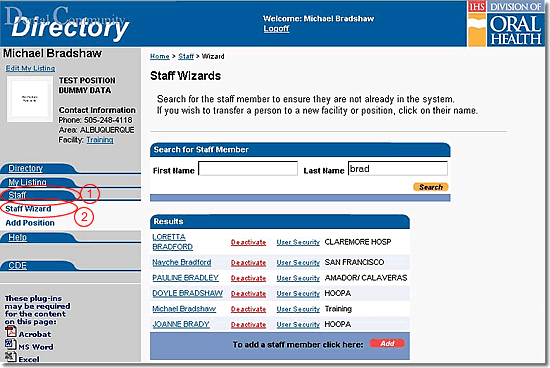
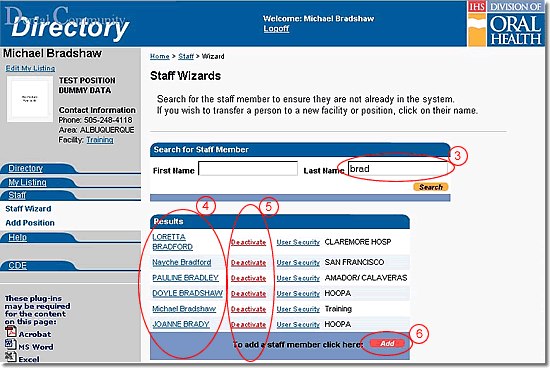
- Enter the first few letters of the last name of the staff member whom you must add in the Last Name text box provided and click the Search button
- Scroll the screen as needed to confirm that the staff member is not in the database with a misspelled name or an inactive status
- If the person is listed but inactive, click the “Activate” link to reactivate the staff member, then proceed to Transferring Personnel between Facilities
- If the staff member is not listed, click the Add button to go to the “Staff Wizard” and add that person
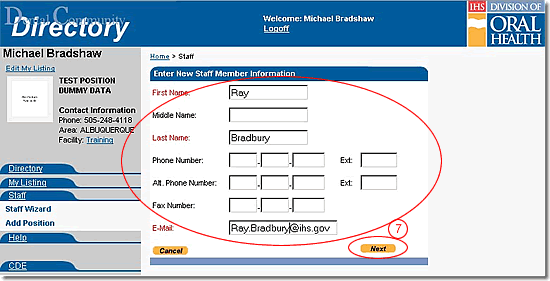
- In the form provided, enter the requested information, and then click the Next button
Note: First Name, Last Name, and email address are required as a minimum.
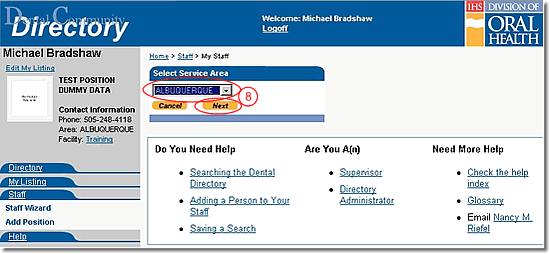
- Select the “Area” from the pull-down list provided and click the Next button
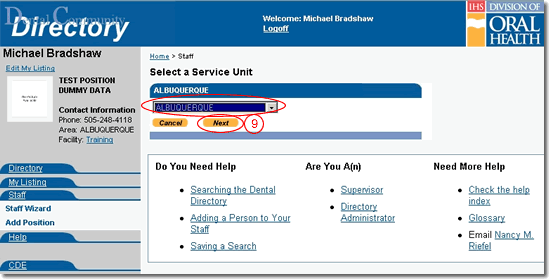
- Select the “Service Unit” from the pull-down list provided and click the Next button
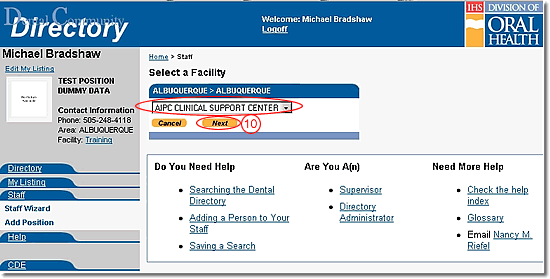
- Select the “Facility” from the pull-down list provided and click the Next button
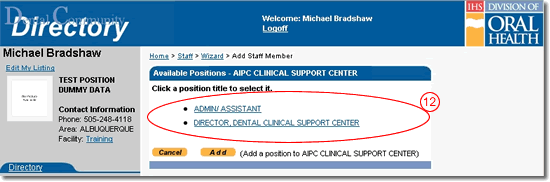
- If the position is not listed, you must add the position
- Click the appropriate position title from the list provided
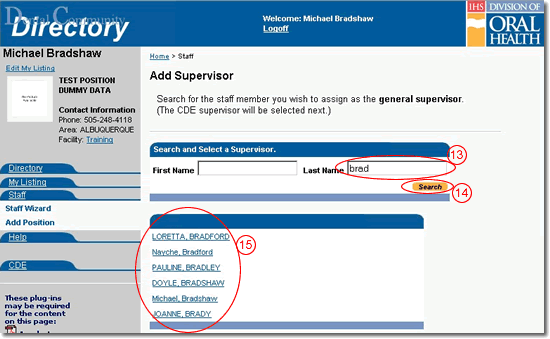
- Type at least the first few letters of the immediate supervisor's last name in the text box provided
Note: If the staff member's immediate supervisor is not within the Division of Oral Health, use the highest DOH authority in the chain of command for the staff member. Chiefs will enter their own CDE authorization. Therefore, chiefs are assigned as their own supervisor. - Click the Search button to display a list of personnel with last names starting as indicated
- Select the supervisor name from the list produced
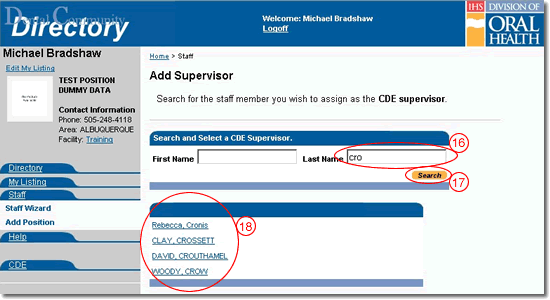
- Type at least the first few letters of the last name for the person who will approve CDE for this staff member
- Click the Search button to display a list of personnel with last names starting as indicated
- Select the CDE supervisor name from the list produced
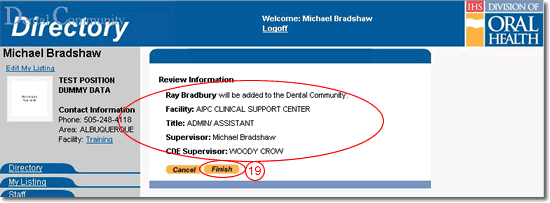
- Confirm that all information is correct, then click the Finish button
Do You Need Help |
Are You A |
Need More Help |
Directory | Help | Disclaimers
If you have any questions about this site please email: IHS Dental Directory Administrator
